



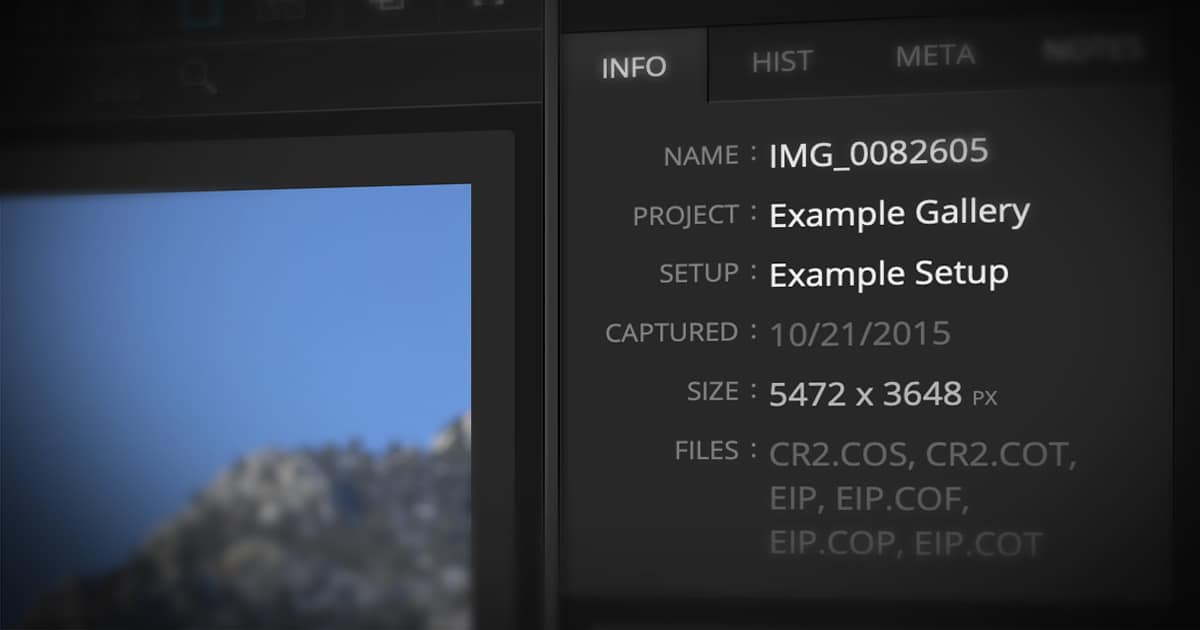
Part of what makes DF Studio an industry leader is our intuitive approach to file management and few features contribute to this more than the convenience of file stacking.
File stacking automatically combines the various file types of an image into one asset in the DF Studio proofsheet. Once stacked, you and any recipients of your Messengers have easy access to the specific file type needed, without having to scan through lists of duplicate names.
Ensuring that your files stack properly can save a lot of time down the road, so let’s go over the basic requirements:
3 Keys to File Stacking
- Stacking only occurs at the time of upload
- Filename must be an exact match (not including the extension)
- Uploaded to the same Project AND Setup
When preparing files for upload, placing all of the versions of an image into one folder will allow you to ensure they are being added to the same Setup during upload. It’s also a good idea to double-check that the filenames of these versions are all the same (again, excluding the extension). If any slight variations exist, such as a hyphen or underscore, the files will not stack.
 Correctly Stacked: Each original file is grouped with other file types into a single asset.
 Not Stacked: Each original file is stored in DF Studio as its own separate asset.
Re-stacking Files
Even with preparation, it’s not impossible for some items to end up outside of a stack or missing from the rest of their matching files. When this happens, there are a couple of tips that make the re-stacking process much easier:
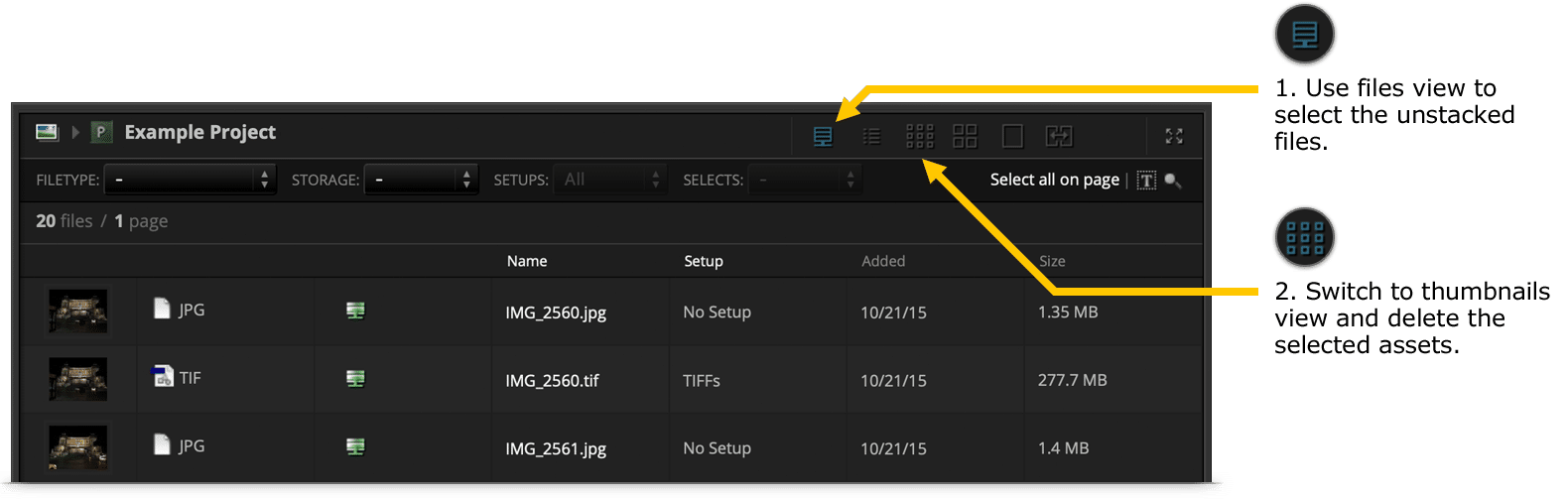
- Use files view to identify unstacked assets.
- Download any files that will need to be re-uploaded, if you don’t still have local copies.
- Use the Filetype filter menu to find discrepancies and select the appropriate files.
- Switch to thumbnails view or list view to delete the assets that need to be re-uploaded.
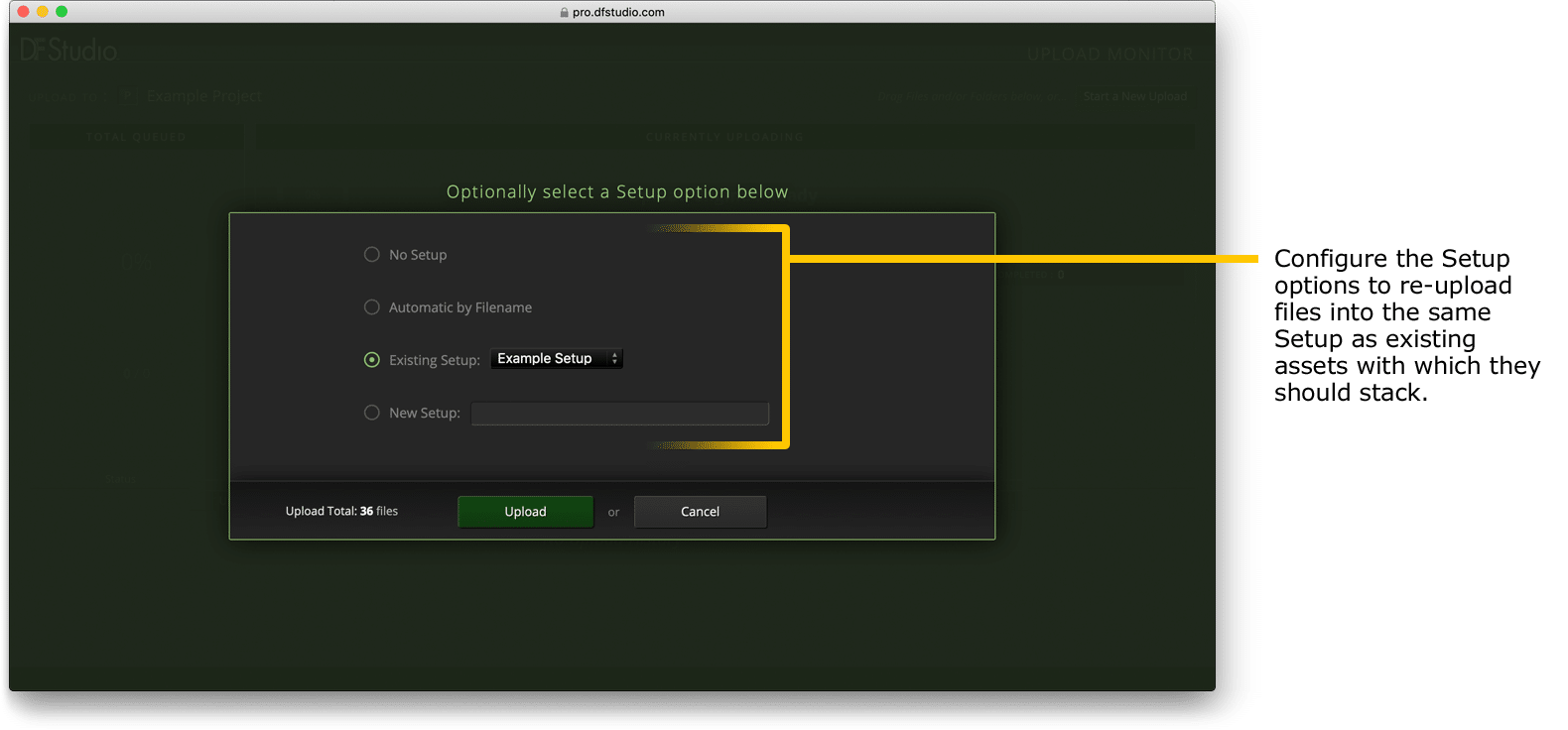
- When re-uploading, put files into folders that match the correct Setup names, or manually select the Setup containing assets to be stacked.
Contact DF Studio
As always, if there are questions about DF Studio that you can’t resolve, send a message to DF Studio Support and we’ll be happy to help.